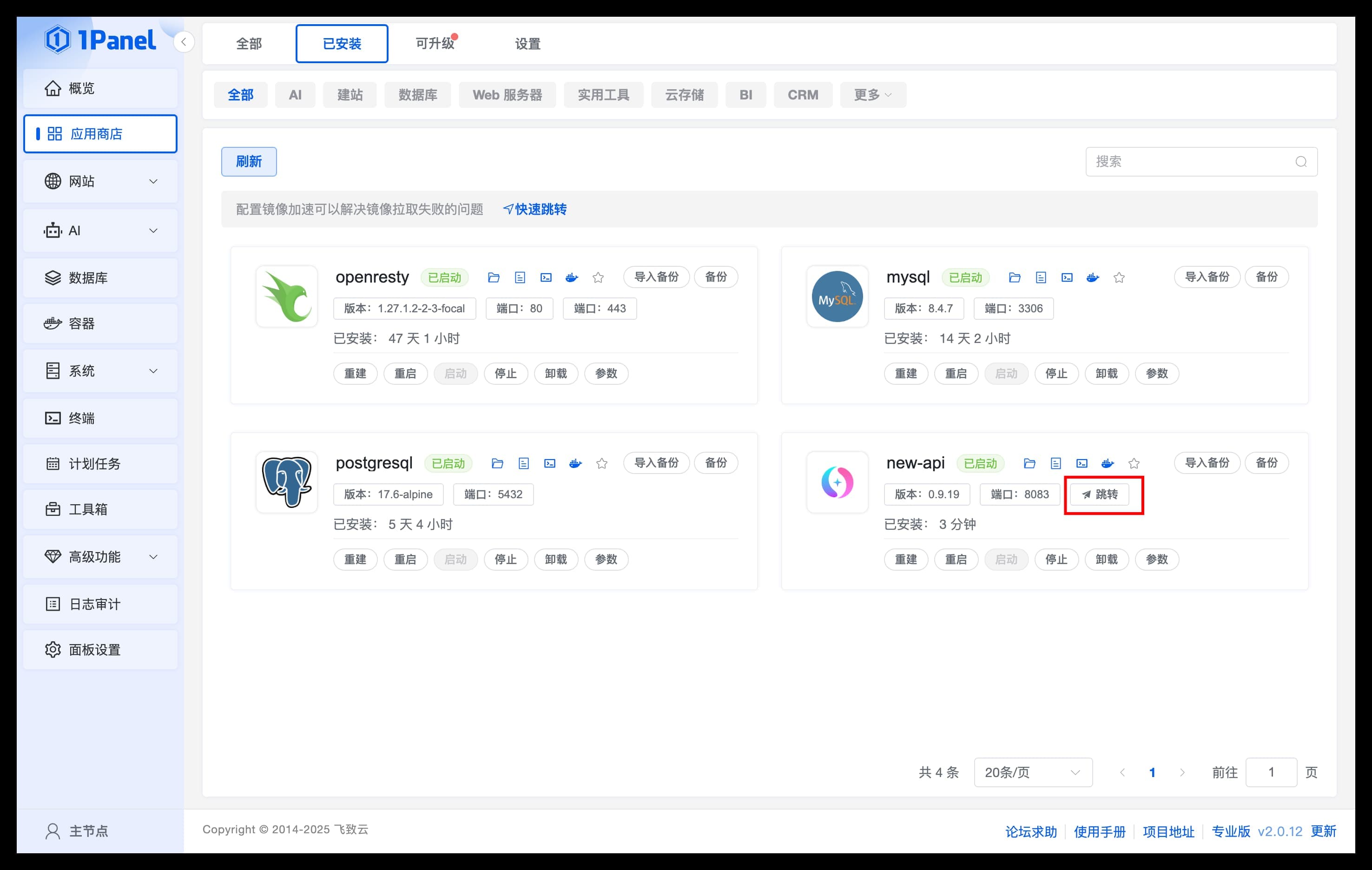
1Panel Panel Deployment
Install 1Panel Panel
Install 1Panel Panel
- For information on 1Panel installation, deployment, and basic features, please refer to the 1Panel Official Documentation - After completing the 1Panel installation and deployment, open your browser to the prompted URL to access the 1Panel panel.
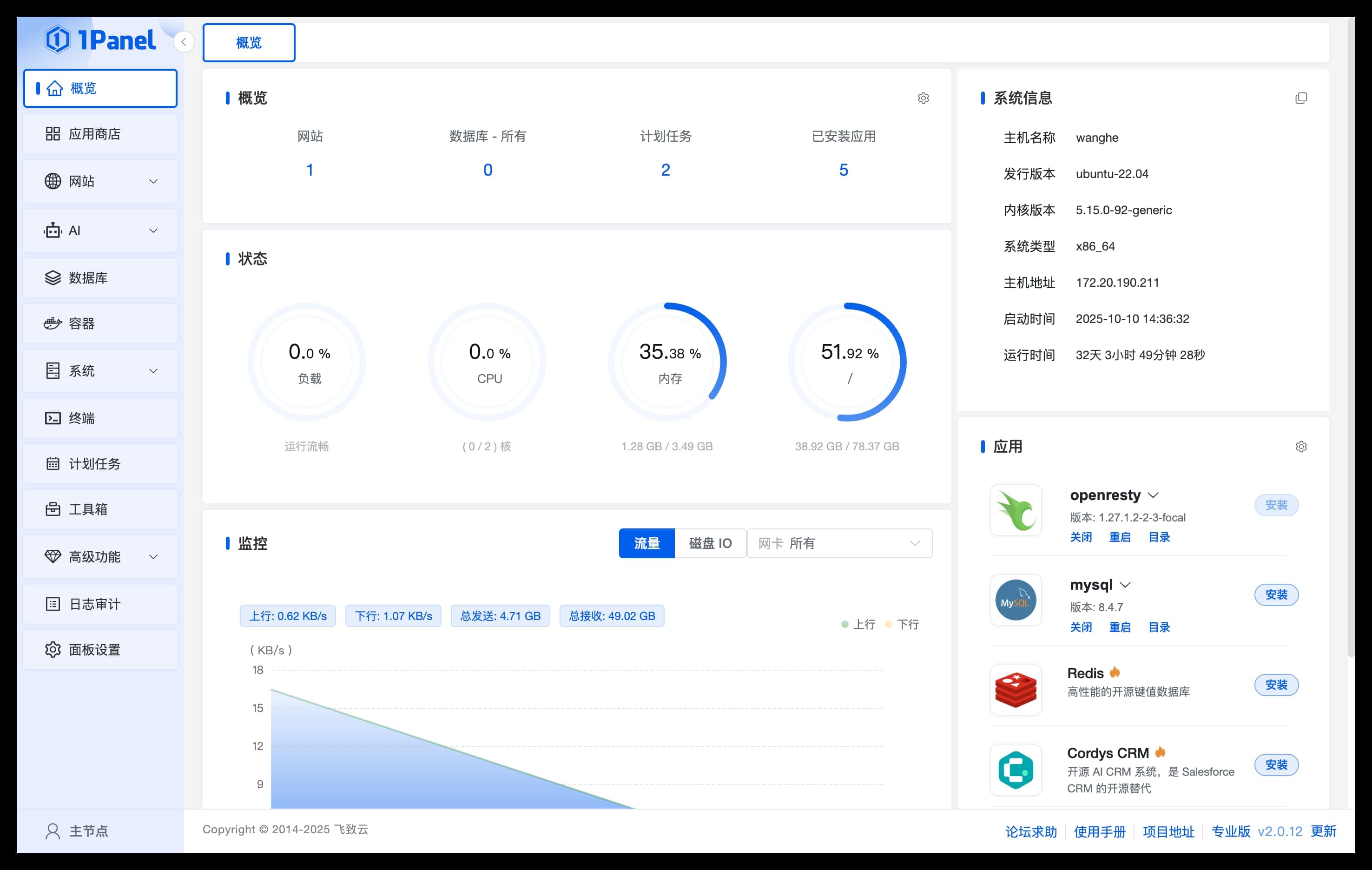
Install TokenAge
Search for Applications
Go to the application list in the App Store, find the TokenAge application under the [AI] category, and install it.
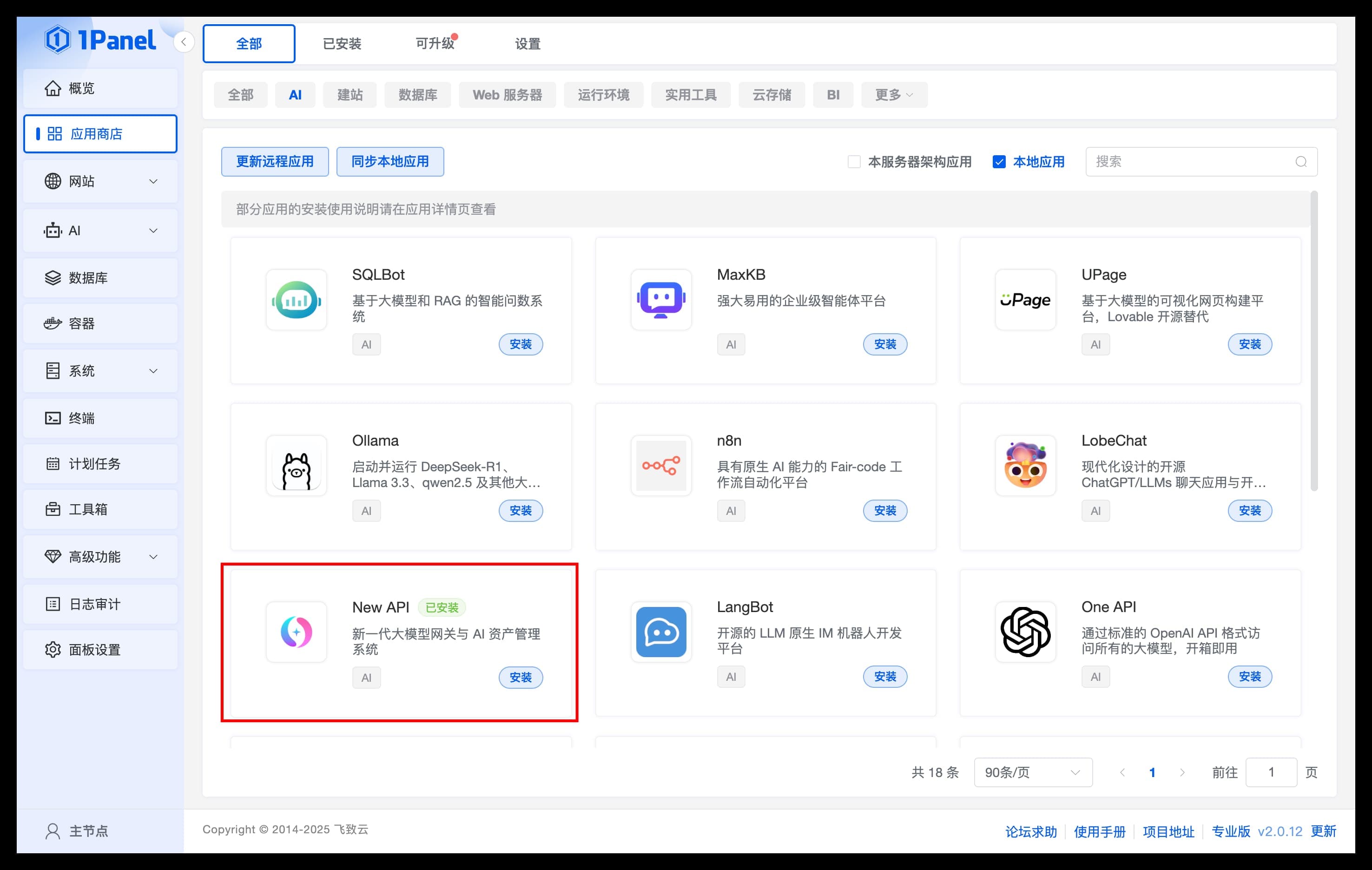
Install Application
Configure TokenAge application parameters on the installation page:
- Name: The name of the TokenAge application to be created
- Version: Select the version of TokenAge
- Port: The service port for the TokenAge application
- Timezone: Enter the timezone where the server is located (default Asia/Shanghai)
- Advanced Settings: Be sure to check external port access
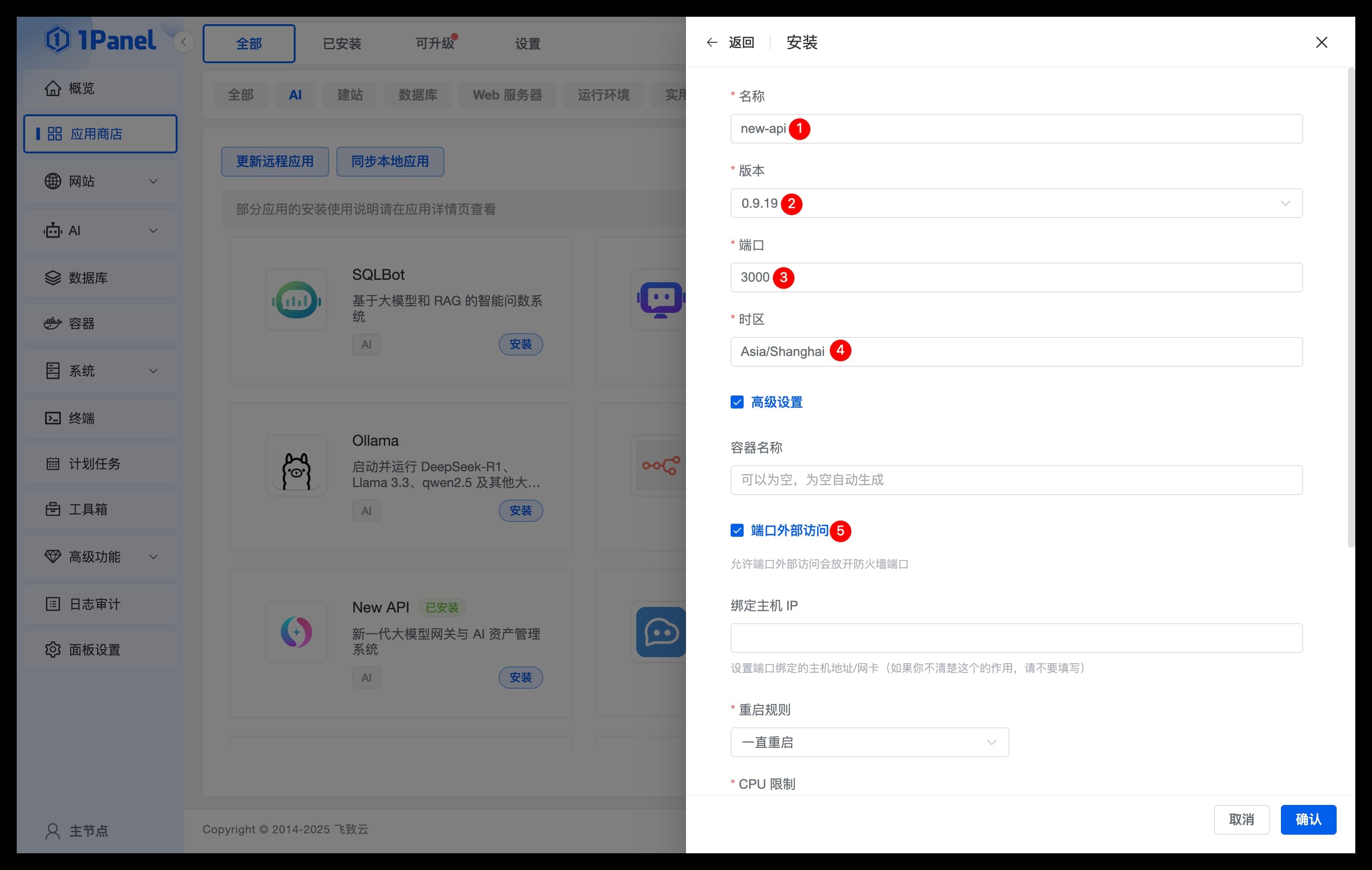
Confirm Installation
Click Confirm to start the installation. The page will automatically redirect to the installed applications list. Wait for the TokenAge application status to change to Started.
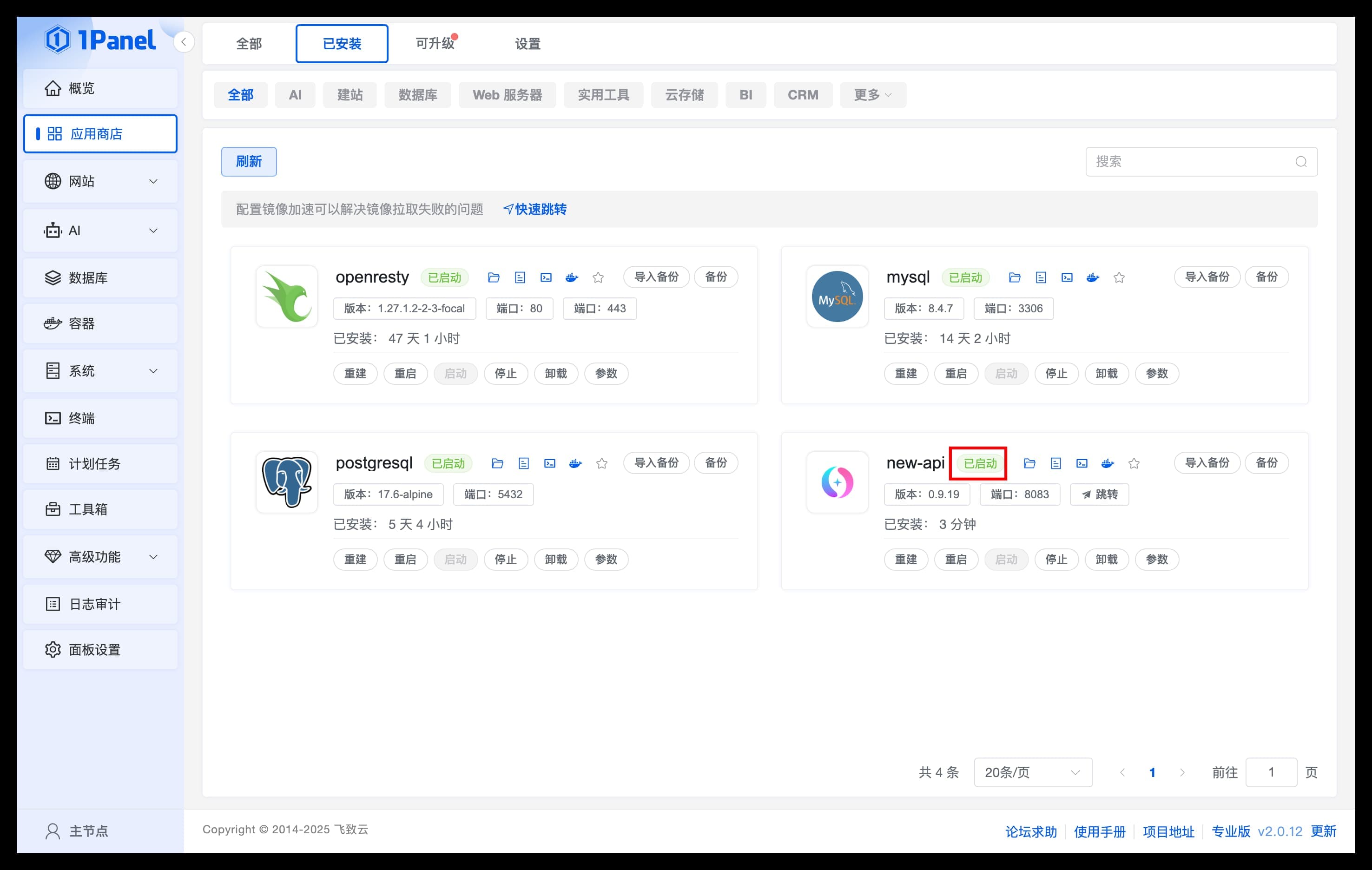
Access TokenAge
Access Application
- On the
Installedpage, clickJumpto enter the TokenAge WebUI page. - Before use, it is recommended to set theDefault Access Addresson thePanel Settingspage.